Annotations and bookmarks
Everything you add to a map is listed in the Annotations panel, left of the map; press 2 or its button in the header to unfold it. Its cards, from the top, are Contact maps, Tracks, Structures, Manual annotations, Metadata annotations and Bookmarks (the last two folded at first); a card the open file cannot use is hidden. Loading tracks is covered in Tracks and features.
Your own marks
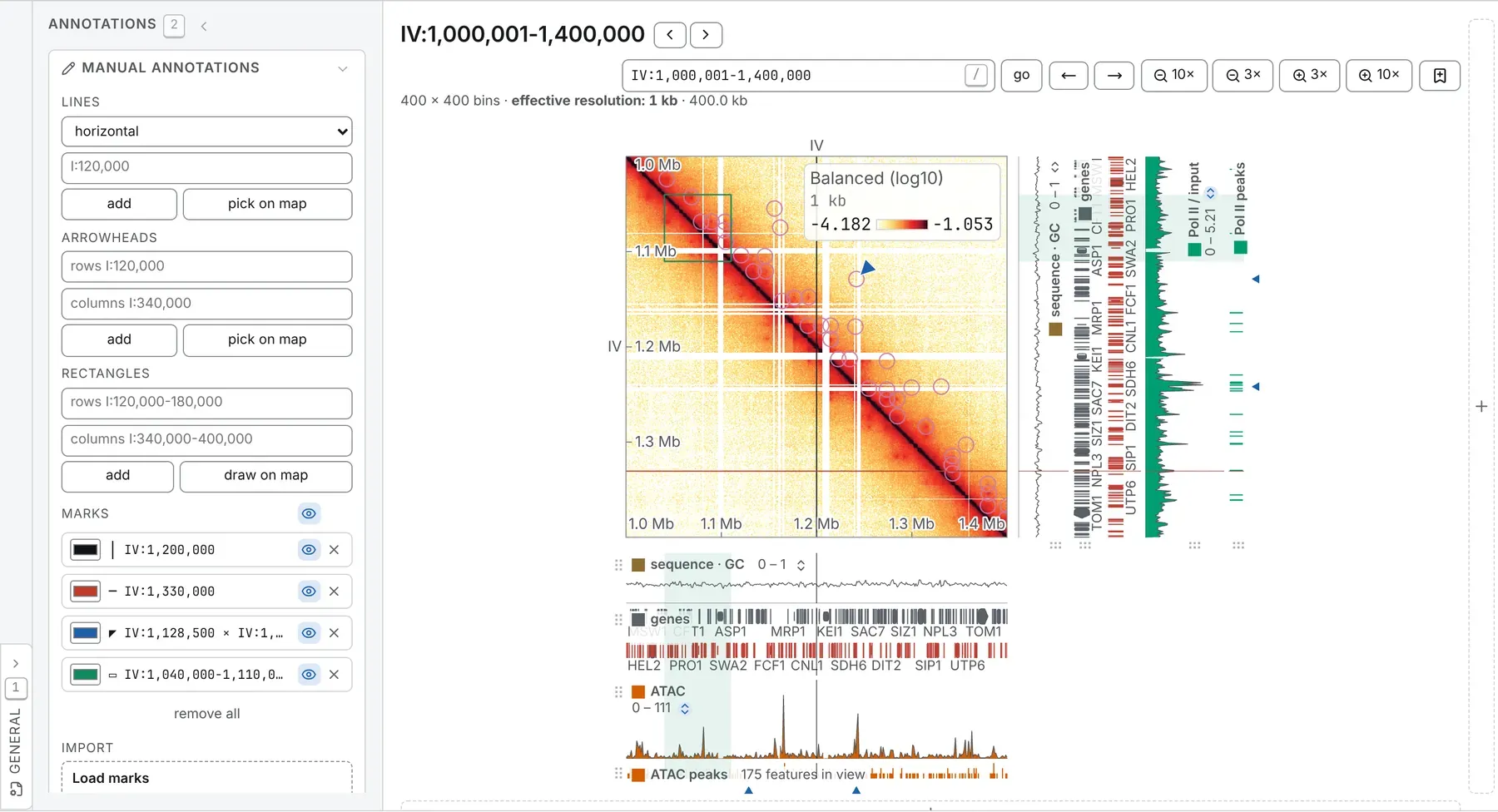
Section titled “Your own marks”The Manual annotations card holds the marks you draw: a line at one position (vertical, horizontal or both, a crosshair), an arrowhead on one cell of the map, usually a loop, and a rectangle over a block of contacts between two stretches, such as a domain.
Adding a mark
Section titled “Adding a mark”Each kind has a form, Lines, Arrowheads or Rectangles:
- Type it and press add or Enter. Coordinates are 1-based and inclusive, as IGV writes them,
and may carry commas,
kborMb. A line takes a position and an axis (vertical,horizontalorboth), an arrowhead a position for the rows and one for the columns, a rectangle a stretch for each; leave the second box empty for the same place on both axes. - Pick it on the map: press pick on map (lines, arrowheads) or draw on map (rectangles), then click, or drag a rectangle (Shift locks it to the diagonal). The mode stays on until done or Esc.
A right-click on the map marks the cell under the pointer: under Mark this point, choose Vertical line, Horizontal line, Crosshair or Arrowhead. On a 3D model, Mark a bead, Mark a loop and a Shift-click add marks too.
Beside the 1D browser the buttons read pick on track and draw on track, and what you place lands on the diagonal: a line becomes a crosshair, a rectangle the square on it. Each new mark takes the palette’s next colour.
Every mark is drawn on every picture: maps, lanes, tracks cells, the 1D browser and 3D models.
Moving, hiding and removing marks
Section titled “Moving, hiding and removing marks”- Press a row’s place to edit it: Enter, a click away or a Tab past its last box moves the mark, and Escape leaves it.
- A row’s eye hides the mark from every picture. A double-click on it shows that mark alone, and a second brings the others back.
- The eye on the MARKS heading, or A (Manual annotations in the palette), hides every mark, and brings back only the ones it hid.
- Every picture’s right-click menu has a Marks group: Hide this line, Hide this arrowhead or Hide this rectangle for a mark under the pointer, Hide every mark, and, once none is drawn, Show the marks.
- The × on a row removes the mark; remove all clears every mark on this file.
A figure saved while a mark is hidden leaves it out.
Saving and loading marks
Section titled “Saving and loading marks”Under Export, choose lines (BED) or arrowheads & rectangles (BEDPE) and press save; hidden marks are included. Under Import, drop a BED or a BEDPE on the card, or click Load marks:
- a BED row is a line on the axis its name column says (
vertical,horizontalorboth), or a crosshair at the interval’s start for any other name; - a BEDPE row is an arrowhead when both anchors are one base wide, as the export writes them, and a rectangle otherwise.
A mark already at the same place is skipped, as the line under the zone reports. The same BED dropped on the map becomes a track.
What an analysis leaves
Section titled “What an analysis leaves”A task in the Analysis panel leaves its results as rows of the Tracks card.
A computed track is a track
Section titled “A computed track is a track”A result with one value per bin, such as an insulation score or an E1, is a track like a loaded
bigWig, with the same settings, in the 1D browser and on a 3D model too. A * after its name, and a
line under it, say what made it; its settings (the chevron, Show this track’s settings) hold its
exports and the view it was computed from.
Run the task again and its rows take the new values in place. Opening the same file at another resolution keeps the rows, with their values on the bins they were computed on; another file leaves them behind.
To combine two loaded tracks, tick both on the Tracks card and choose ratio or difference
under combine…; the new row is marked * too.
A called set has two displays
Section titled “A called set has two displays”Peaks, boundaries, domains, A and B compartments and loops arrive as one row per set. Its settings open on display:
- 1D track: segments as wide as each call, beside the map and in the 1D browser; for pairs, arcs (1D track) join the two ends of each pair;
- map overlay, on the map it was called from: a ring round each pair; for places such as boundaries or peaks, a look of point (a dot on the diagonal) or short diagonal marker (a rule across the diagonal that leaves it uncovered); for stretches such as domains, the corner of each one’s square along the diagonal.
A set read against a lane, such as peaks or A and B, opens as a track under that lane; a set that pictures the map, such as domains or loops, opens on the map. In the 1D browser every set is a track.
Each called interval has a name in the BED’s fourth column, such as A or peak_12, numbered in
genomic order; a lane can be coloured by those names. A set of pairs, called or loaded, also
offers anchors: both ends of every pair as a BED, each place once.
The file’s own columns
Section titled “The file’s own columns”The Metadata annotations card draws the columns a file keeps beside its contacts, such as a balanced cooler’s weights, as lanes. Choose a column from its menu, grouped by table, and press add; it is then a lane like any other.
- A column that differs on nearly every row is an identifier, and is not offered.
- A column can be no finer than the view. Where one cell of the map is a whole sequence, a bins column is greyed, with a note saying why; where a cell covers several bins, it shows their mean, or their commonest label.
- TSV writes the column as the file wrote it, under
#lines naming the file, the table and the column; a bins column only for the bins read so far, those the picture covers.
Bookmarks
Section titled “Bookmarks”A bookmark keeps a place on the genome and the bin size it was found at, not the zoom, the colour scale or the turn. To make one:
- press the bookmark button beside go in the map’s title bar (Bookmark this view — the place on screen, at this resolution), B, or save this view on the card;
- type a window or a position, 1-based and inclusive, into Save a place and press add;
- under Import, press regions from BED…: every interval becomes a bookmark, named by the fourth column if there is one, at the map’s current resolution.
Click a row to go there: the whole sequence opens, zoomed to the place. The × forgets one place, and remove all every place on this file. A place already saved is not added twice.
Taking annotations out
Section titled “Taking annotations out”| What | Where | Formats |
|---|---|---|
| Your marks | Manual annotations, Export | lines as BED; arrowheads and rectangles as BEDPE |
| A computed track | its row’s settings, or the Analysis drawer | bigWig, bedGraph, TSV |
| A called set | its row’s settings, or the Analysis drawer | BED, or BEDPE for pairs, and TSV; a set of pairs’ anchors from its row |
| A loaded set of pairs | its row’s settings | anchors, as BED |
| A metadata column | its row on Metadata annotations | TSV |
| A 3D model | its row on Structures | bed3d, PDB |
A bedGraph leaves out the bins with no value, never writing them as 0. A TSV opens with the task, its
parameters and the view as # lines (Figures and export). Bookmarks have no
export: they travel in a saved workspace and a shared link.
What is kept
Section titled “What is kept”Every track, mark, bookmark and setting is kept for its file in this tab, through reloads, changes of resolution, the switch to the tracks and back, and the deck opening or closing. Two tabs on the same file share none of it. The link in the address bar carries only the view; a link made with Share this tab as a link, and a saved workspace, carry everything (Sessions, workspaces and links).
After a reload:
- a track from an address is read again;
- a track from your disk keeps its settings and asks for its file, with re-open this file or, where this browser kept permission, allow access; dropping the file again answers it;
- a computed row keeps its recipe (the task, its parameters and the view), not its values: it reads values not kept over the reload and offers recompute, as from a workspace or a shared link;
- a metadata row is ready.
Documentation of chromosomix v0.20.0 · built from 40ec1ec · source