A tour of the window
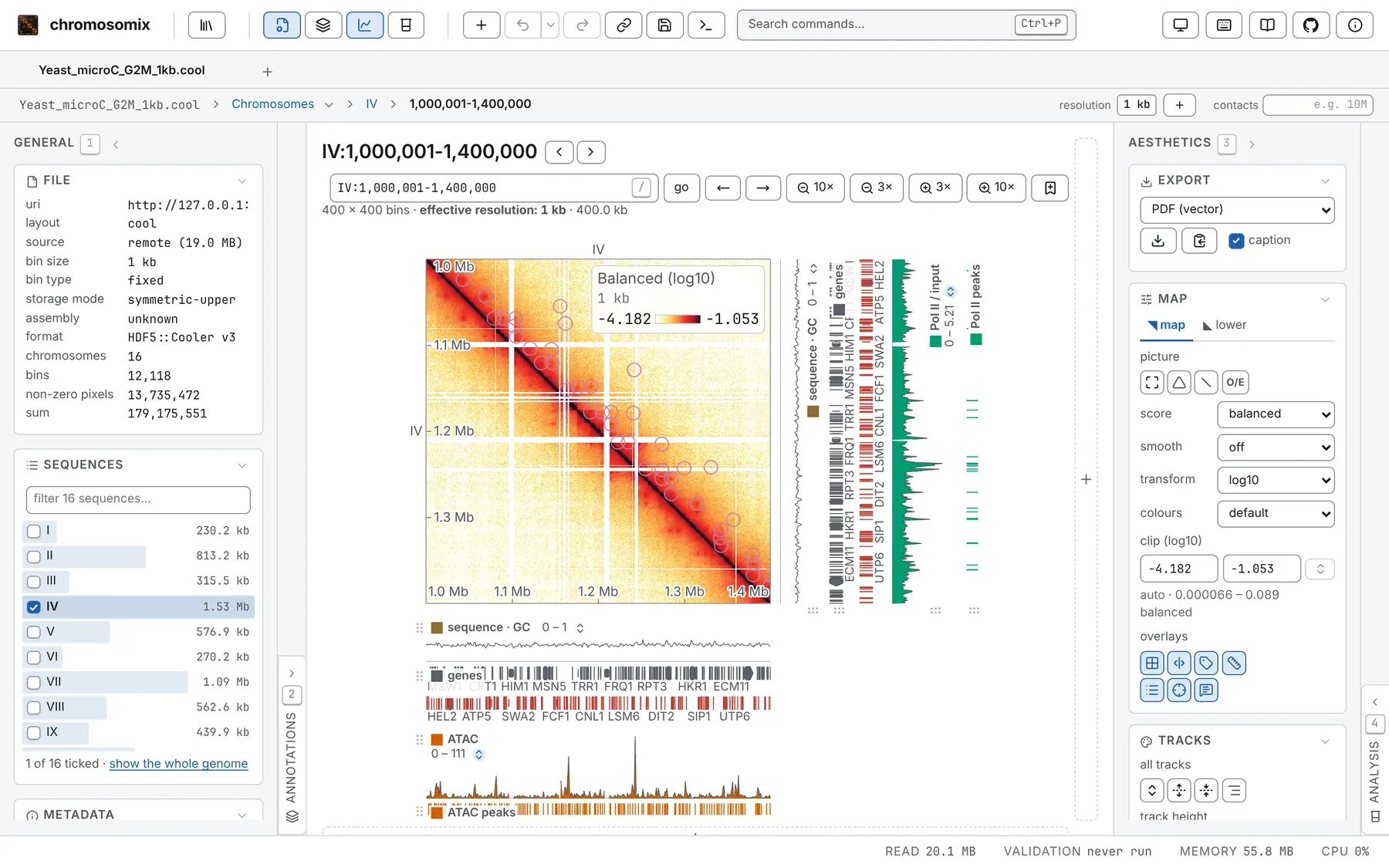
From the top: the header, the tabs, the trail and the heading over the picture, with the panels either side, the console along the bottom when it is open, and the status bar at the foot.
The header
Section titled “The header”From left to right:
- The brand, the mark and chromosomix: the landing page, in a new tab if this one holds something.
- The stores, which opens the store drawer (\), and, while a folder is connected, the Files column.
- The four panels’ buttons, absent with their panel when it has nothing to show.
- + adds a file to this tab: a second map beside the first, anything else as a track. In an empty tab it opens the file.
- Back and forward, the browser’s own; the chevron beside back lists the steps behind you.
- Share this tab as a link, Save every tab as a file (Ctrl+S, ⌘S on a Mac) and the console (Sessions, workspaces and links).
- Search commands…, the command palette (below).
- About the window: the theme (T), the keyboard shortcuts (?), this documentation, the source on GitHub, and About this viewer: the guided tutorial, the build, the notebooks that check it and the licences.
A button’s tooltip names its key.
The command search
Section titled “The command search”Search commands…, or Ctrl+P (⌘P on a Mac), finds any action by name, with its key; one that cannot act on what is open is greyed. Only here are Refine on zoom, which reads a window again at a finer grid as you zoom past what was read, and, under Help, What this browser is remembering, with a button that forgets it all (Keyboard and command palette).
A tab per open file, twelve at most, each a session of its own: two tabs on the same file share nothing. The + at the end of the row, or O, opens a new one; Ctrl+< and Ctrl+> step between them; a double-click or F2 renames one; its × or a middle-click closes it, and the last is emptied instead.
For a file on the web, the address bar is a link to the view. After you close the browser, the window offers your tabs back with restore. A bar under the tabs carries what a tab found out about its file, such as a sequence that reads as circular, until you dismiss it.
Over the picture: the trail and the heading
Section titled “Over the picture: the trail and the heading”The trail — the file, the table or the whole genome, the sequence, the window — says where you
are and takes you back up; click the file to open another in its place. At its end, resolution
picks a bin size the file stores (- and + step), and its + adds one summed
from the file’s bins, marked *. contacts draws every map in the tab at the number of contacts
you type, 10M say, to compare libraries at one depth.
The heading has the title, with ‹ and › for the previous and next sequence; the locus box
and go; arrows and zoom steps; and a bookmark of the view (B). The line under it gives
the effective resolution, coarser than the file’s when the window holds more bins than the picture
has room for (Moving around).
The picture, and the deck of cells
Section titled “The picture, and the deck of cells”A tab shows a contact map, with tracks on its edges and marks on it (Reading a contact map); the genome browser, tracks along the genome with no map, which a tab opens as when its first file is a track (The genome browser); or a deck of cells, panned and zoomed together.
The + down the map’s right edge or along its bottom opens a column or a row of empty cells, for a map, a track or a 3D structure; a map dropped on an open map opens beside it too. Each cell has a grip to swap it, a star for the map the Map card sets and analyses run on, and a chain, lit while it follows the others. The deck’s bar has add a cell…, match all scales, match all resolutions, the number of cells across, the deck as one figure and close deck (Maps side by side).
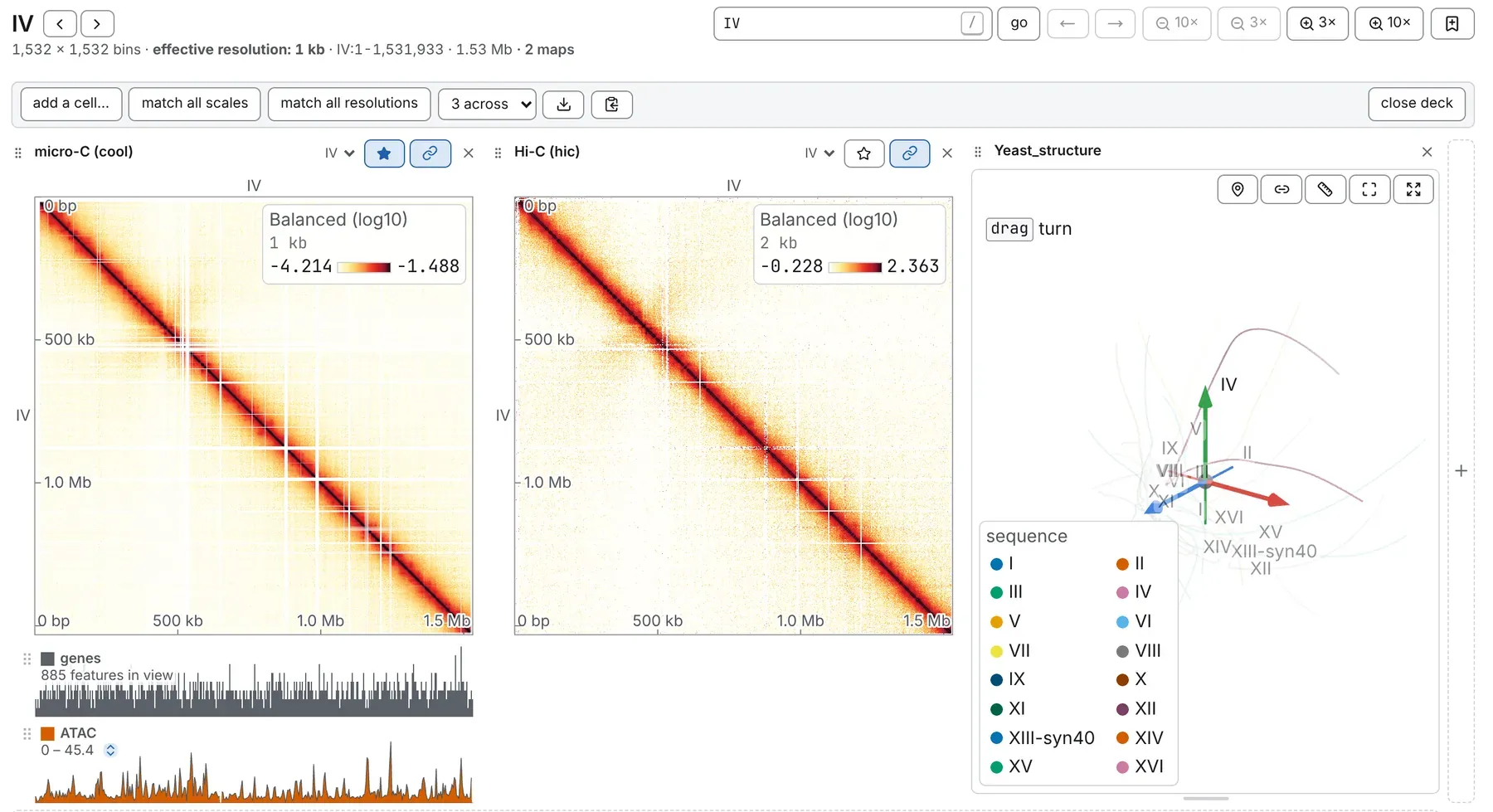
The pictures keep their light colours in the dark theme, as in a figure.
The four panels
Section titled “The four panels”Open or fold a panel with its header button, its key or the chevron in its heading; folded, it leaves a strip with its name. General and Aesthetics start open. The keys go by their place on the keyboard, so they work on any layout.
- General (1, left): the file itself. File gives its format, bin size and contacts; the ticks on Sequences show one chromosome, several against each other, or, with none, the whole genome; Genome minimap marks the view; Metadata holds the rest.
- Annotations (2, left, against the picture): what is drawn on and beside it — Contact maps, Tracks (with Load a track; each row sets colour, height, range, style and edge), Structures, Manual annotations (your marks), Metadata annotations (the file’s own columns) and Bookmarks (Annotations and bookmarks).
- Aesthetics (3, right, against the picture): how it is drawn. Map sets the score, smoothing, O/E, transform, colours, clip and overlays (in a deck, the starred map’s); Tracks sets how tracks are drawn; Export saves a PDF or a PNG (Figures and export).
- Analysis (4, right): the tasks — 2D tasks read the map, 3D tasks model it,
1D tasks read tracks — each with what it answers and its state. A greyed row says what to load;
hover a row’s
?for the method the task reproduces and how it compared, green where it matched. The box above filters the list.
A task’s row opens the Analysis drawer: settings, run (cancel while it runs), progress, results and exports. It is not a dialog: the map stays live, and Esc or its × puts it away without stopping the run (Analyses).
Drag a panel’s inner edge to widen it; double-click the edge to reset it. A card folds by its heading and drags by it to another place, in its panel or another; Put every card back in its own panel undoes the moves. This browser remembers the layout.
The Files column
Section titled “The Files column”Outermost on the left, the same in every tab, it lists the places you have connected — a folder on your disk, a bucket, a Google Drive folder, a Dropbox — one level at a time. It appears once you connect one; its connect a local or remote folder button connects more, and the key left of 1 folds it.
A file’s + adds it to the tab in front, a second button opens it in a tab of its own, and its row drags onto the map, an edge or a cell. In a browser tab a folder on your disk lasts the visit (this visit); the desktop app and the web app installed from Chrome or Edge keep it (Web, desktop or one file). See Opening files.
The store drawer
Section titled “The store drawer”The stores’ button, or \, opens it on the left, over the panels: one catalogue of published data at a time, switched by the tiles at its top. It stays up while you work; Esc or its × puts it away (Data stores).
The console
Section titled “The console”It opens along the bottom, from its header button or with Ctrl and the key left of
1 (Ctrl+` on most keyboards, Control on a Mac too). Every file
opened, track loaded, analysis run and file written is a line, as the chromosomix command that
repeats it. copy, save and clear act on the whole log; provenance prints each run’s
full record. The log stays in this browser for a week, or 500 lines, and is never sent anywhere. The
map stays live while it is open; Esc puts it away (The console).
The status bar
Section titled “The status bar”From the left: the coordinates under the pointer; read, how much of the file has been read; validation, a deeper check of the file’s stored pixels, never run until you press it; and memory and cpu, what this tab costs your machine. read and validation appear only while a file is open; hover any of them for its detail.
Documentation of chromosomix v0.20.0 · built from 40ec1ec · source